

0
(0)
Issue
- ESET program settings are not password-protected on client workstations
Solution
ESET business product no longer supported
This article applies to an ESET product version that is currently in End of Life status and is no longer supported. The content in this article is no longer updated.
For a complete list of supported products and support level definitions, review the ESET End of Life policy for business products.
ESET Remote Administrator (ERA) users: Perform these steps in ERA
- Open the main program window of your Windows ESET product.
- Press the F5 key to open the Advanced setup window (if you are using a tablet, tap Setup → Advanced setup).
- Click User Interface.
- Expand Access Setup and click the slider bar next to Password protect settings.
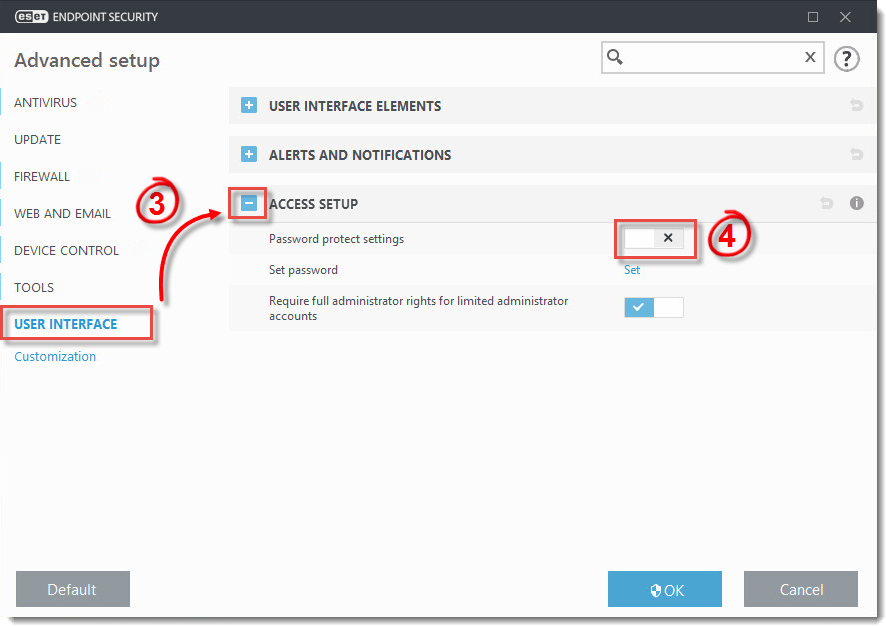
Figure 1-1
- Type the password into the New password and Confirm password fields, and click OK.
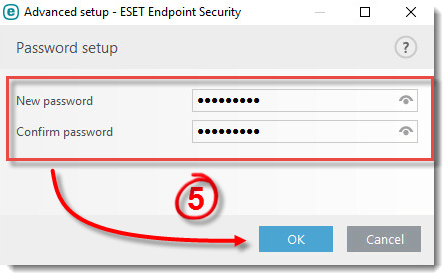
Figure 1-2
- Click OK.
Languages
Please contact your local support agent if you would like us to translate this article.
Last Updated: Dec 22, 2020
Related articles:
- How do I grant a user administrator privileges in Mac OS X?
- Password protect program settings on client workstations in ESET endpoint products (7.x and later)
Source : Official ESET Brand
Editor by : BEST Antivirus KBS Team
How useful was this post?
Click on a star to rate it!
Average rating 0 / 5. Vote count: 0
No votes so far! Be the first to rate this post.
(Visited 30 times, 1 visits today)