

Issue
- Install the ESET Secure Authentication (ESA) mobile app from the SMS download link
- Log into Outlook Web Access using the ESA mobile app
Solution
 Android user? Click here
 iPhone user? Click here
Click for instructions to log into Microsoft Outlook Web Access (OWA) using ESET Secure Authentication
Install the ESET Secure Authentication mobile app
- Tap Messages on the Start screen.
- Open the SMS message with the text, “To install ESET Secure Authentication, click http://…” and tap the URL link.
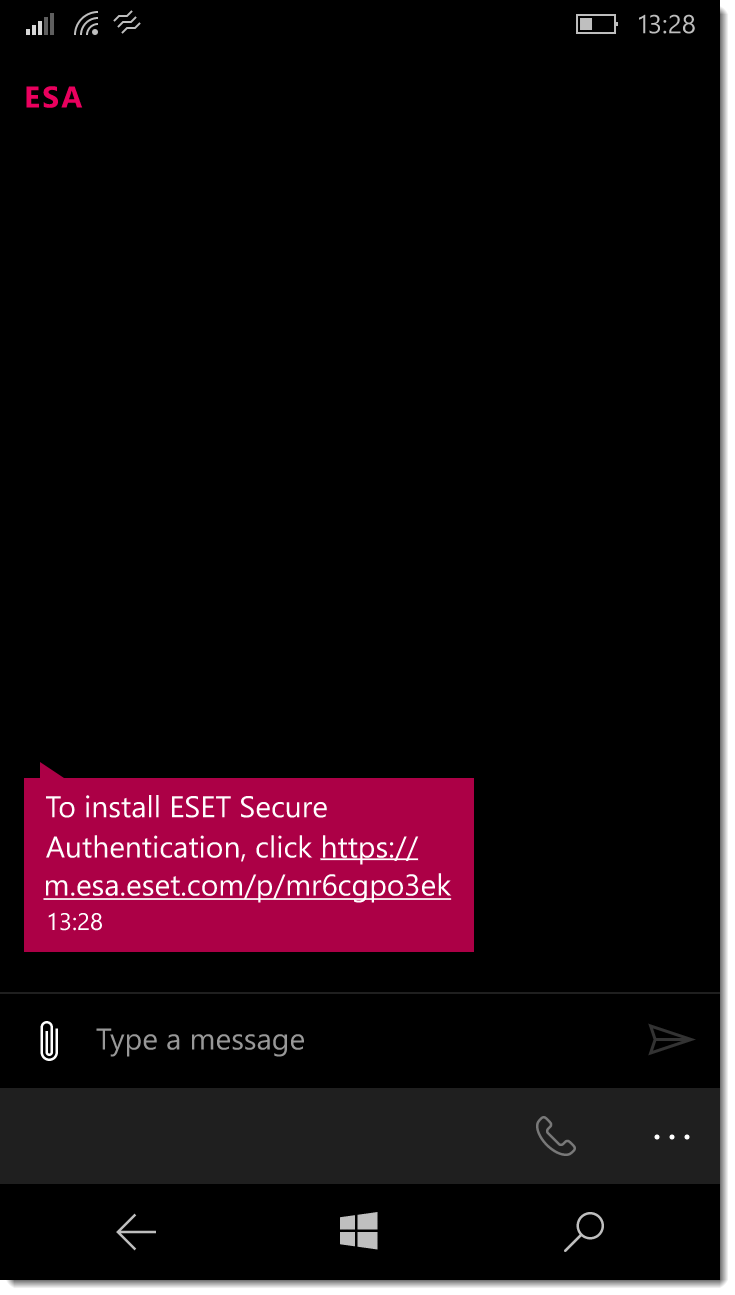
Figure 1-1
- Select your version of Windows OS.
Tap Windows to reveal available versions, and select the version corresponding to your phone’s OS.
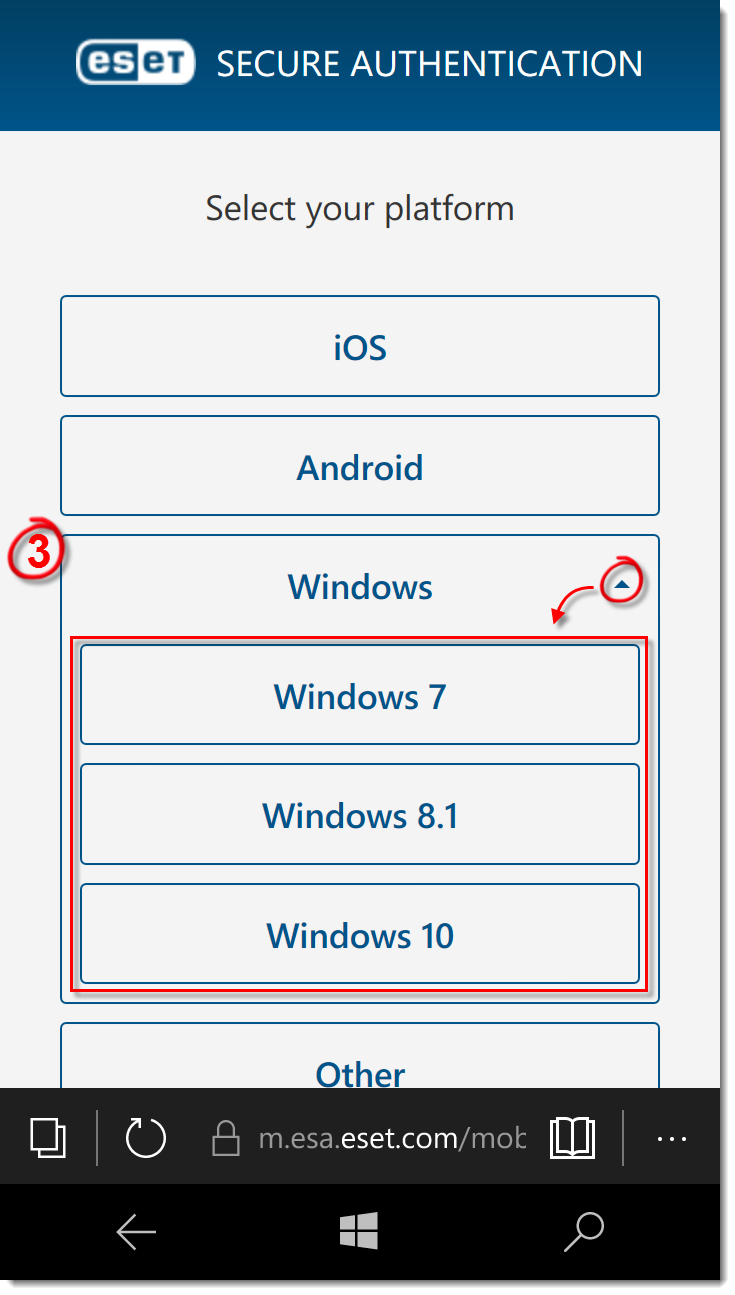
Figure 1-2
- Tap Open store.
If you have already installed the ESA app, tap Add account.

Figure 1-3
- Tap install. Once the application has installed, tap Launch.
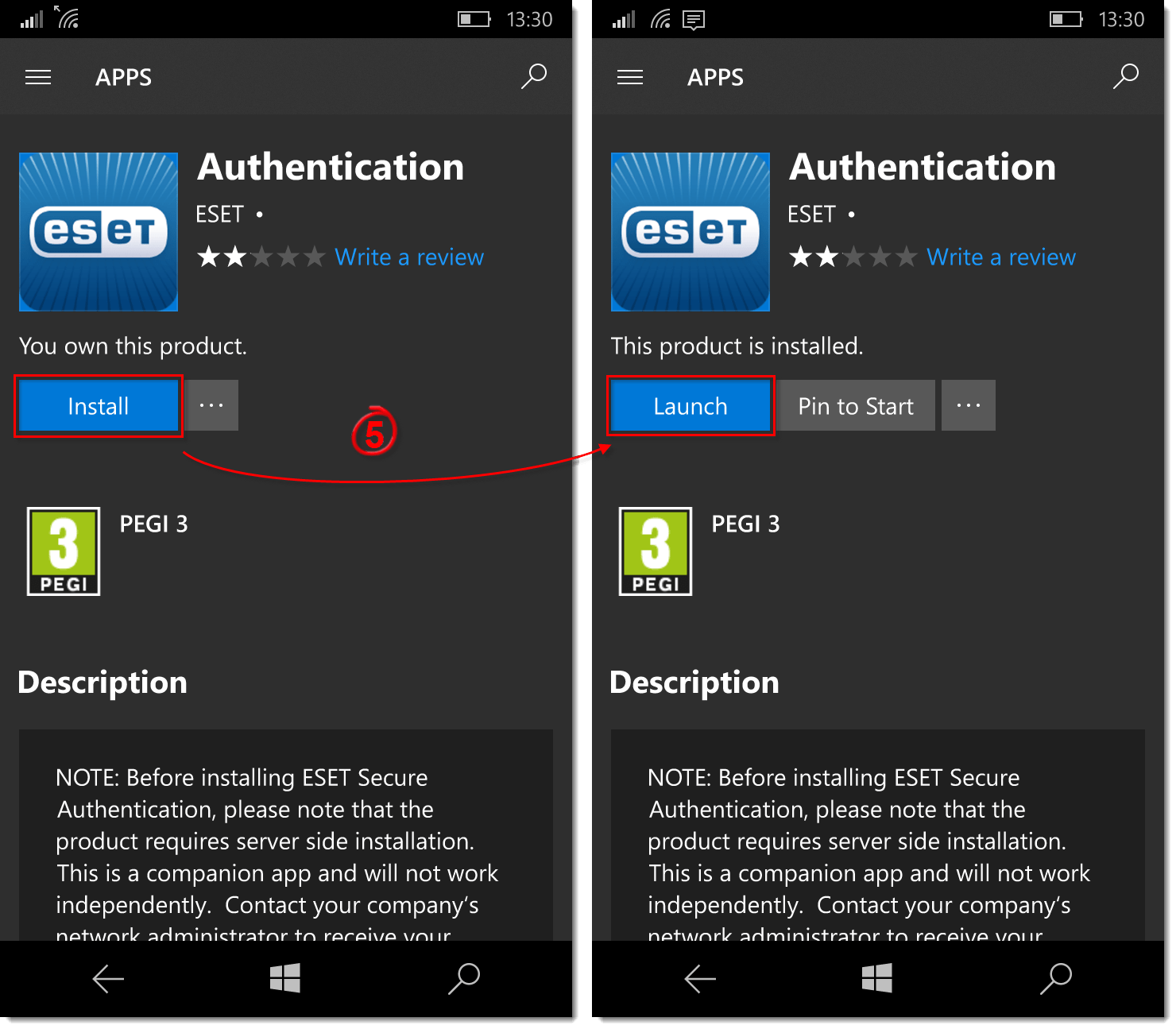
Figure 1-4
- Review the license agreement and tap I accept.
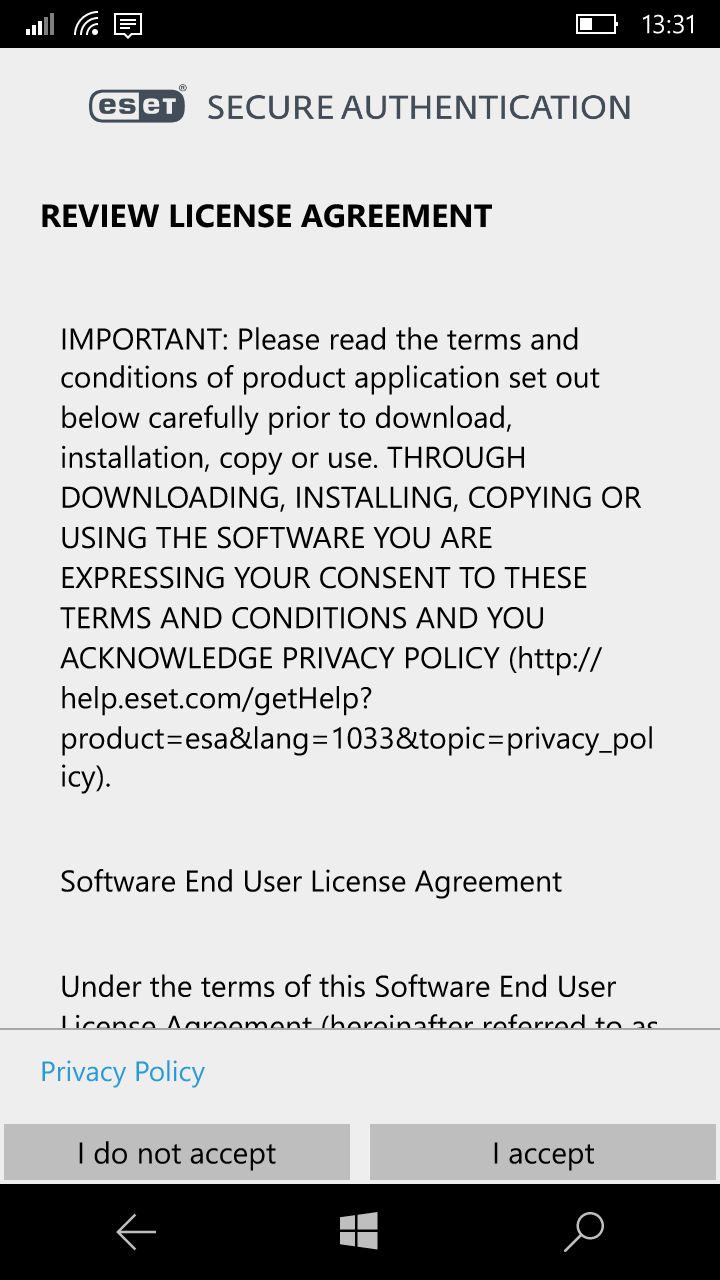
Figure 1-5
- Enter the desired PIN code and tap OK.
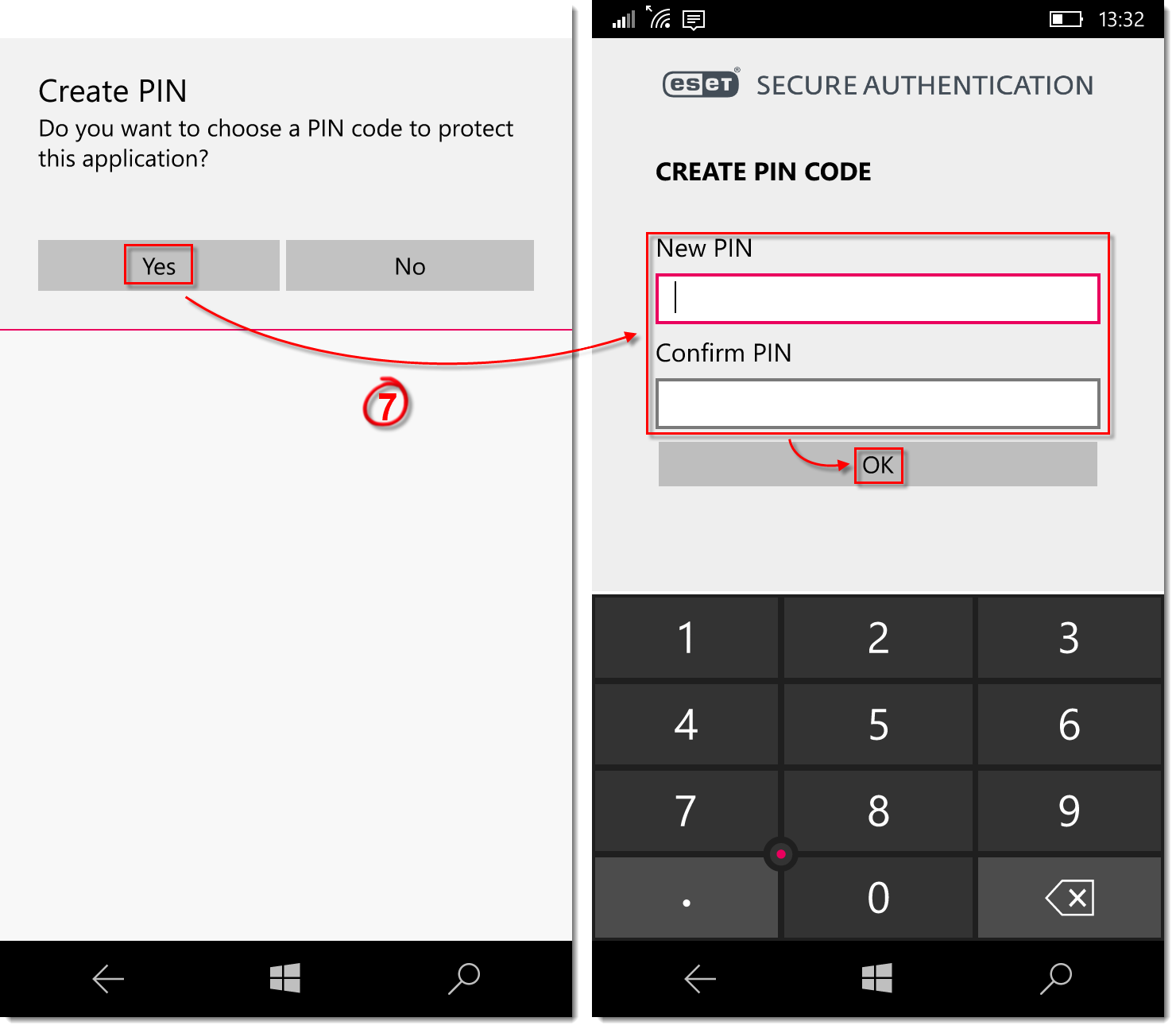
Figure 1-6
Use ESET Secure Authentication to login to Outlook Web Access
- On your personal computer, access Outlook Web Access (OWA) as directed by your administrator. Enter your Microsoft Exchange username and password into the OWA login screen and click Log On. A second OWA login screen will prompt you to enter your one-time password, which you will generate using the ESET Secure Authentication mobile app.
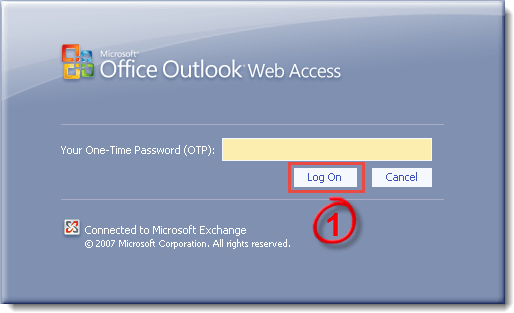
Figure 2-1
- On your mobile device look up the Authentication app among the installed applications (swipe right to left from the Start screen) and tap the Authentication app icon.
- Tap Secure Login (text may vary according to administrator settings) to generate a one-time password.
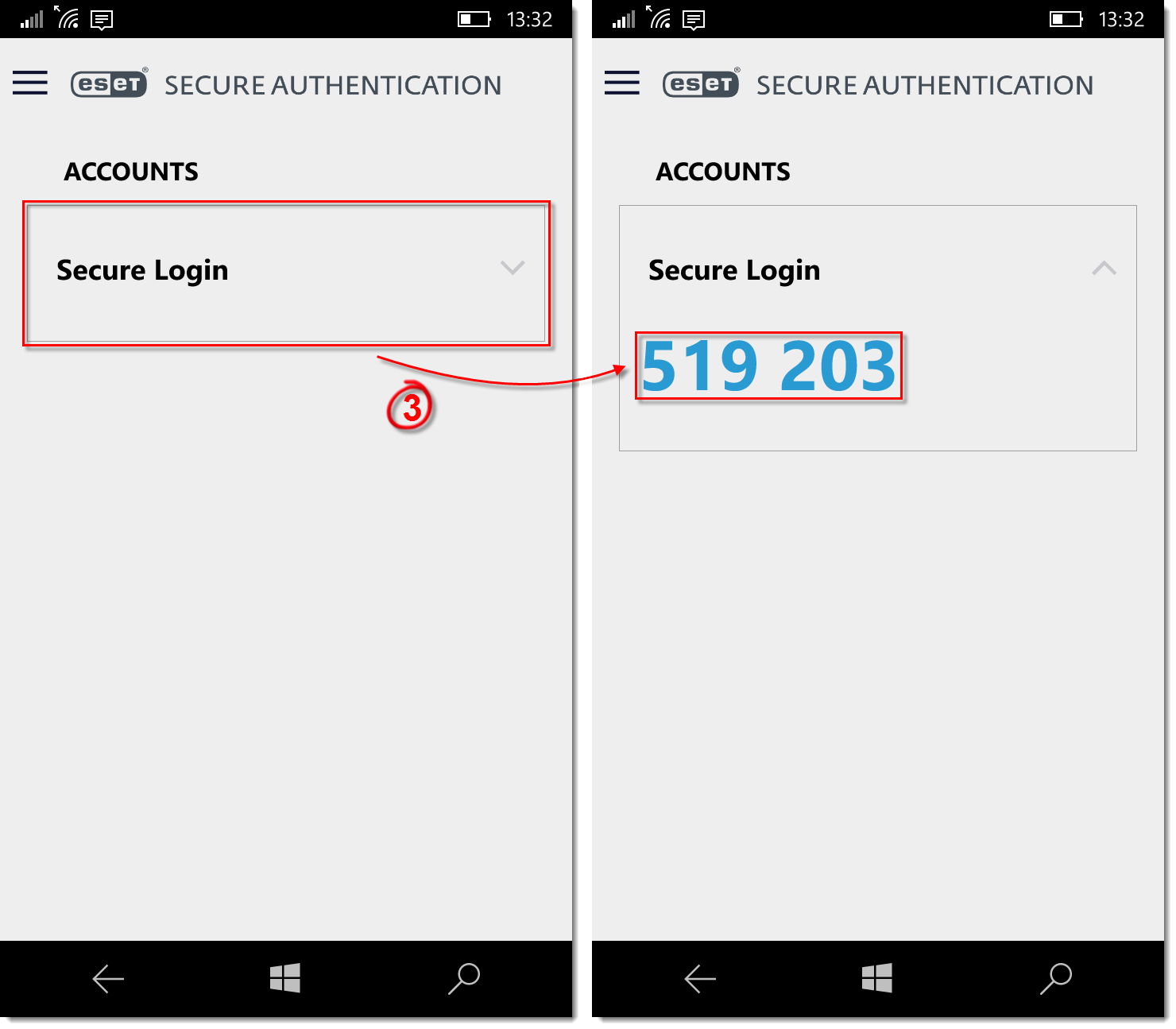
Figure 2-2
Last Updated: Mar 23, 2020
Source : Official ESET Brand
Editor by : BEST Antivirus KBS Team
Editor by : BEST Antivirus KBS Team
(Visited 20 times, 1 visits today)